In the left-hand menu, click Meetings, then click the blue Schedule a Meeting button.
 Enlarge screenshot
-
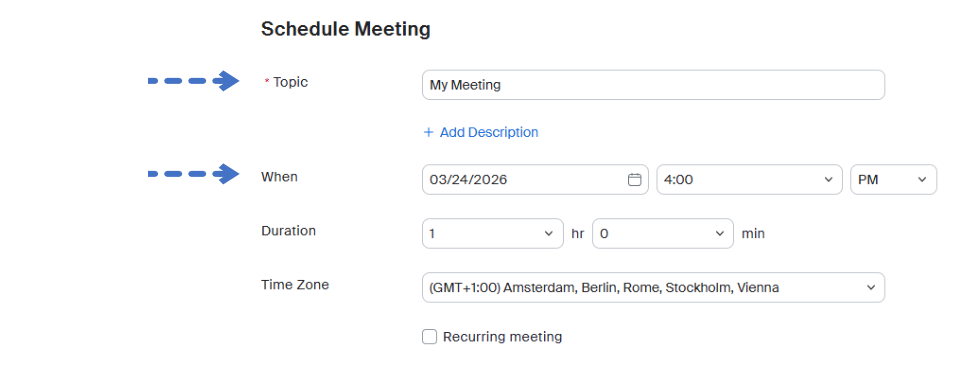
Topic (Topic) : Enter a clear title for your meeting.
-
Date and time (When / Duration) (When / Duration) : Set the scheduled date, start time and duration.
-
Security:
- Passcode (Passcode) : Always enabled by default to secure access.
- Waiting Room (Waiting Room) : Select this checkbox if you wish to admit each participant manually.
 Enlarge screenshot
-
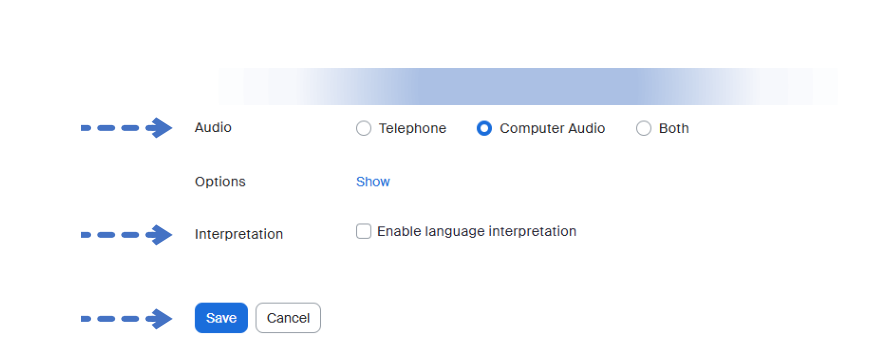
Audio : Select Computer Audio.
-
Interpretation : If your meeting requires interpretation, select Enable Language Interpretation.
-
To finish scheduling your meeting,click Save.
 Enlarge screenshot
-
Invitation : Once you have created the meeting, click Copy Invitation and paste the text into your meeting invitation, for example in Outlook.
 Enlarge screenshot