In the left-hand menu, click Webinars, then click the blue Schedule a Webinar button.
 Enlarge screenshot
-
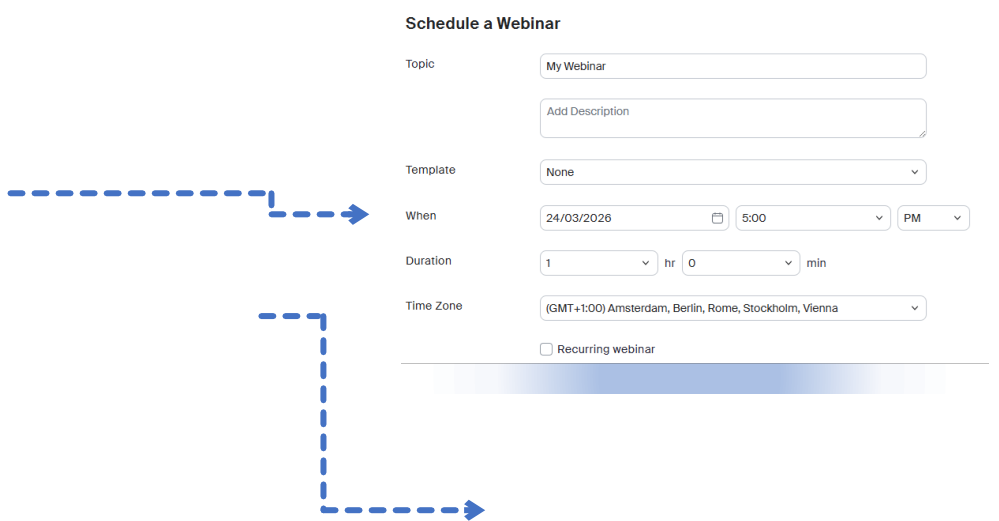
Topic: Enter a clear title for your webinar.
-
Date and time (When / Duration): Set the scheduled date, start time and duration.
-
Passcode: Always enabled by default to secure access.
 Enlarge screenshot
-
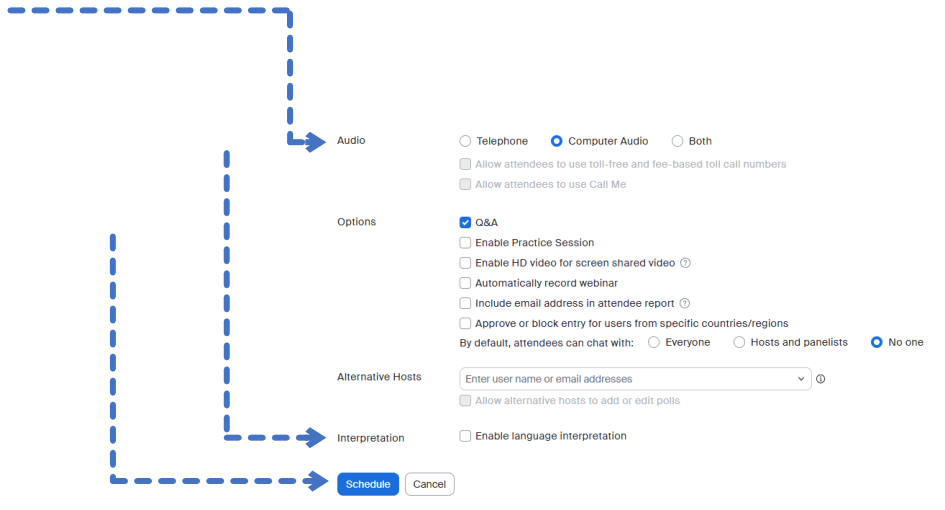
Audio: Select Computer Audio.
-
Options: We recommend selecting Enable Practice Session. This allows you to start the webinar privately with the panellists before attendees can see or hear you.
-
Interpretation: If your webinar requires interpretation, select Enable Language Interpretation.
-
To finish scheduling your webinar, click Schedule.
 Enlarge screenshot